Running the Omnissa / VMware Horizon Client in distrobox
Note
- The below guide is based on an original post by Fyksen, which is currently no longer available on their page.
- The VMware Horizon client has since been updated and renamed as Omnissa Horizon Client, following a rebrand of the VMware End-User Computing business.
- I’ve decided to publish this updated guide when the existing app version stopped working, and I had to figure out how to install the updated client.
Intro
Last year, when I gave up on Windows, there were a few apps which I could not replace, and had to make sure I could get them working in Linux. The VMWare Horizon client was one such app. At the time, I did not have a company issued laptop, and as such relied on the Omnissa/VMware Horizon Client (as an employer provided solution) to be able to work remotely. I also wanted to be able to install it on my Steamdeck, as I gave up on carrying my laptop and wanted to have the ability to use the Steamdeck as a backup.
After a lot of trial and error, I eventually managed to find a guide that helped me in getting it to work. The solution uses distrobox, which allows us to install the Omnissa Horizon Client on the Steam Deck, Fedora Atomic and Universal Blue images, without it breaking on image updates.
What is Distrobox?
Distrobox allows you to use any Linux distribution inside your terminal. It creates containers using either podman or docker to create containers for running command-line applications. This means you can install packages that might otherwise be difficult to install on immutable operating systems like Fedora Atomic or SteamOS.
Installation Methods
There are 2 main ways of managing a distrobox, and installing the client. If you are comfortable with the terminal, you can do all of it via command line. Alternatively, there is a couple of nice GUIs for distrobox. You have a GNOME based one called BoxBuddy, or, alternatively, the KDE based Kontainer. These make it really easy to handle part of the process via a graphical interface.
Method 1: Terminal Command-line Installation
# Create distrobox Arch container
distrobox create arch --image quay.io/toolbx/arch-toolbox:latest -Y
distrobox enter arch

# Install yay
sudo pacman -S --needed git base-devel && git clone https://aur.archlinux.org/yay.git && cd yay && makepkg -si --noconfirm
yay -Y --gendb

# Install VMware dependencies, and the VMware client from AUR using yay
sudo pacman -S libpulse libxkbfile --noconfirm
yay -S omnissa-horizon-client --noconfirm

# Create desktop shortcut for VMware-view
distrobox-export --app horizon-client

# Exit out of distrobox
exit
Fixing the Timezone Issue
Once you have exported the Omnissa Horizon Client desktop shortcut, you need to update the exec flags to include the timezone, as otherwise you will see a mismatch within the client. In my case, I am using TZ=Europe/Dublin.
-n arch --additional-flags '--env TZ=Europe/Dublin' -- horizon-client %uMethod 2: BoxBuddy or Kontainer - GUI Installation
1. Create a new distrobox container:
- Install and open BoxBuddy or Kontainer, click on the + sign to create a new distrobox.
- Name the container and choose
arch - quay.io/toolbx/arch-toolbox:latestas the image. - Create the container
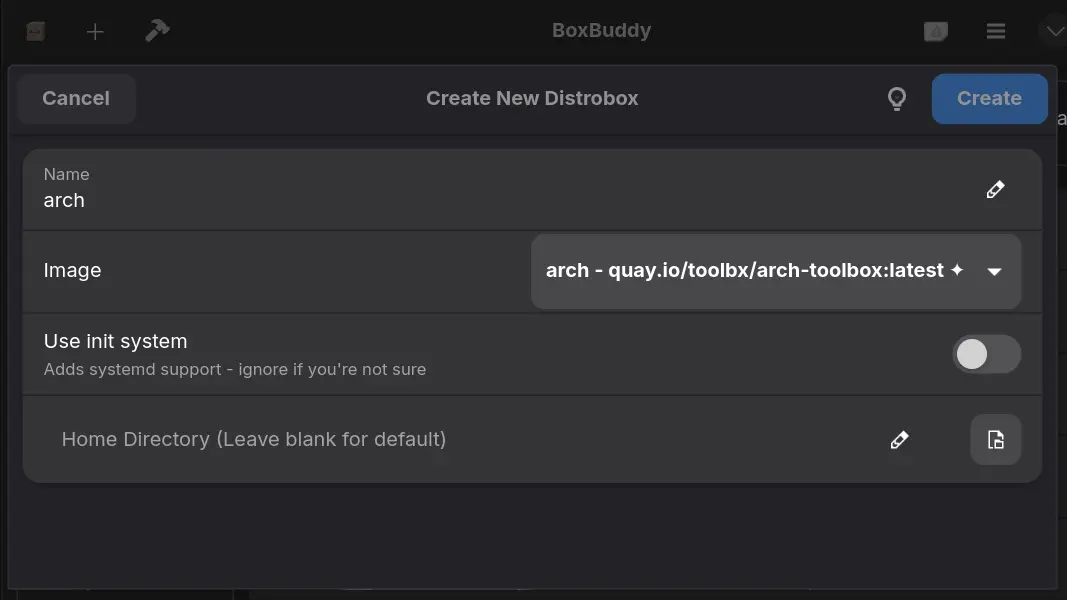
Create the distrobox in BoxBuddy
2. Install the required packages:
-
Once the container is up and running, click Open Terminal
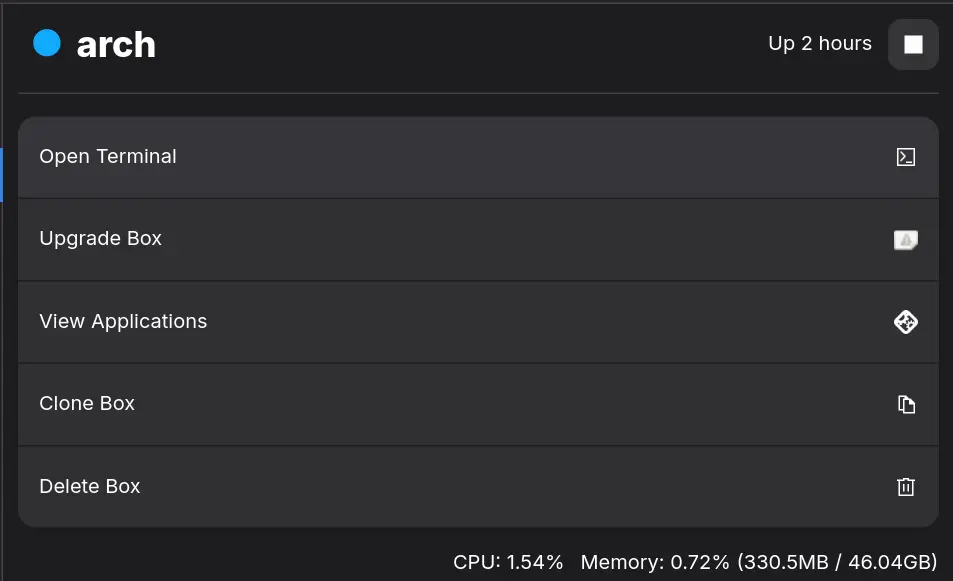
The distrobox within BoxBuddy -
In the terminal, we need to install
yay, the required dependencies for theomnissa-horizon-clientand finally theomnissa-horizon-clientitself. When it finishes you can close the terminal.
# Install yay
sudo pacman -S --needed git base-devel && git clone https://aur.archlinux.org/yay.git && cd yay && makepkg -si --noconfirm
yay -Y --gendb

# Install VMware dependencies, and the VMware client from AUR using yay
sudo pacman -S libpulse libxkbfile --noconfirm
yay -S omnissa-horizon-client --noconfirm
3. Add the application to your system menu:
- If you are using BoxBuddy, click on View Applications. You can then click Add to Menu. It will then show on your “Start” menu.
- If you are using Kontainer, click on Manage Applications, and then click Export. It will then show on your “Start” menu.
- On the “Start” Menu, right-click and edit application. You can then update the command-line arguments to include the timezone, as otherwise you will see a mismatch within the client.
-n arch --additional-flags '--env TZ=Europe/Dublin' -- horizon-client %u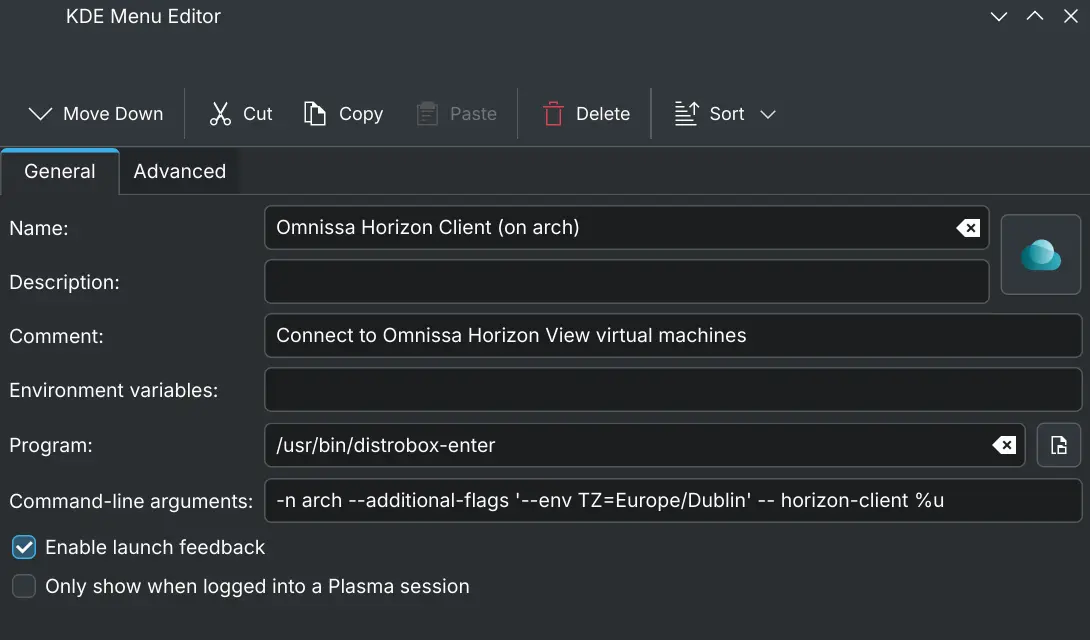
Browser based SSO login
A reader contacted me after facing an issue, where the Horizon client needs to open a browser window to actually handle the login.
We figured out that if you install a browser in the same distrobox container, then the browser window will open and allow you to login. This seems to have worked for him (Thanks Richard for the feedback!).
As of July 2026, my employer has implemented a browser based login, so I had to do the exact same thing. Thankfully, I was able to confirm that these steps work.
Specifically, I installed Chromium in the same distrobox, using:
sudo pacman -S chromiumI then exported Chromium. There’s no need to change any flags, it will just work.
When I select the server in Horizon Client, it automatically opens the browser and allows the login. It then returns me to the Horizon Client and authenticates successfully.
Hopefully this will be useful for anyone else facing the same issue.
Usage and Benefits
You can then start and use the horizon-client app directly from the start menu, like any other app. It will persist across images updates, ie if your Steamdeck or Fedora Atomic / Universal Blue image is updated, the distrobox container and app shortcuts will remain unaffected.